DreamLayer / Game animation
RPG Maker Sprite Generator
Bring a new character into your RPG workflow.
Generate sprite animation frames from a character reference, then prepare your RPG Maker sheet. Review transparent PNGs and learn the MV/MZ character layout.
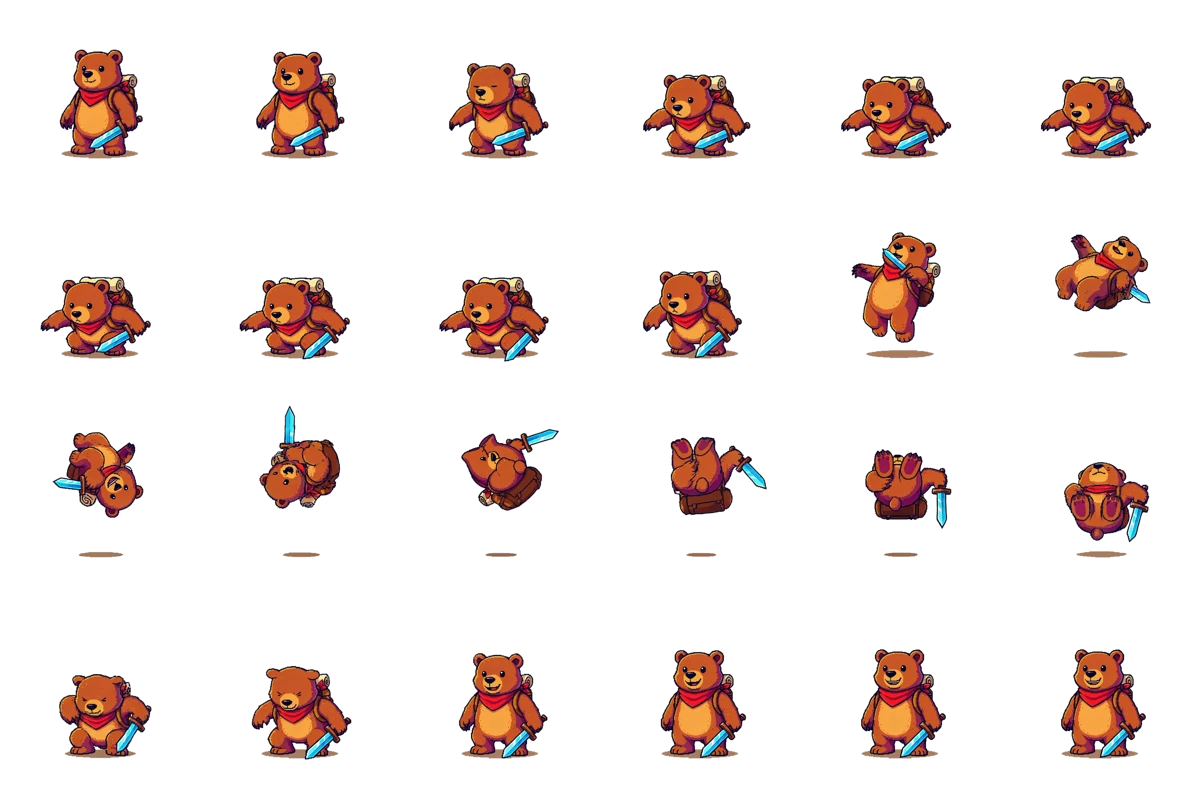
Start with your idea
Choose a character and its motion.
Upload a character image and describe one action. Your image and animation settings carry into the App for review and generation.
Made with DreamLayer
From characters to animated props.
Real animation exports, from an armored walk to a treasure reveal. Select and arrange the frames for your RPG Maker project. Inspect edges and frame consistency before import. These action sheets are not four-direction walking templates.
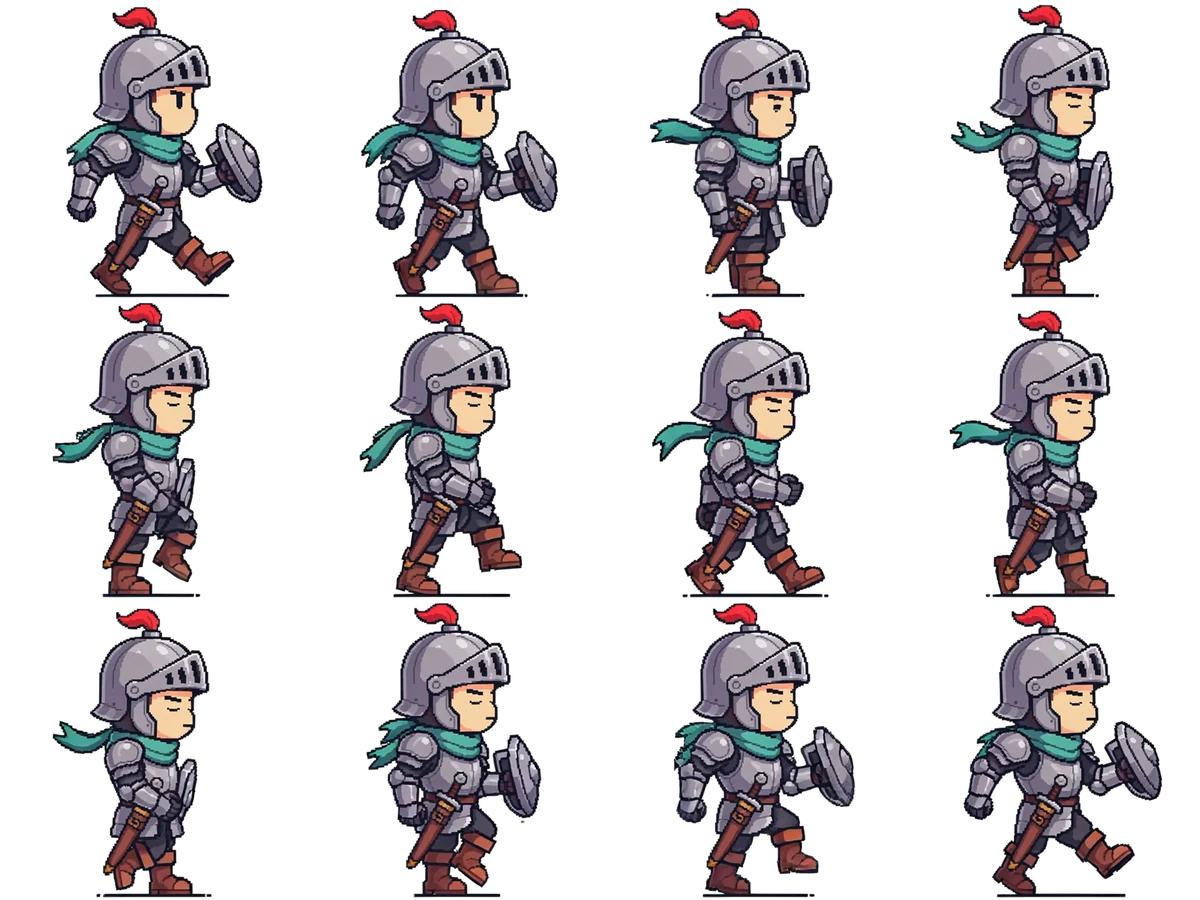
Armored walk
Twelve frames of an armored character walking in place.
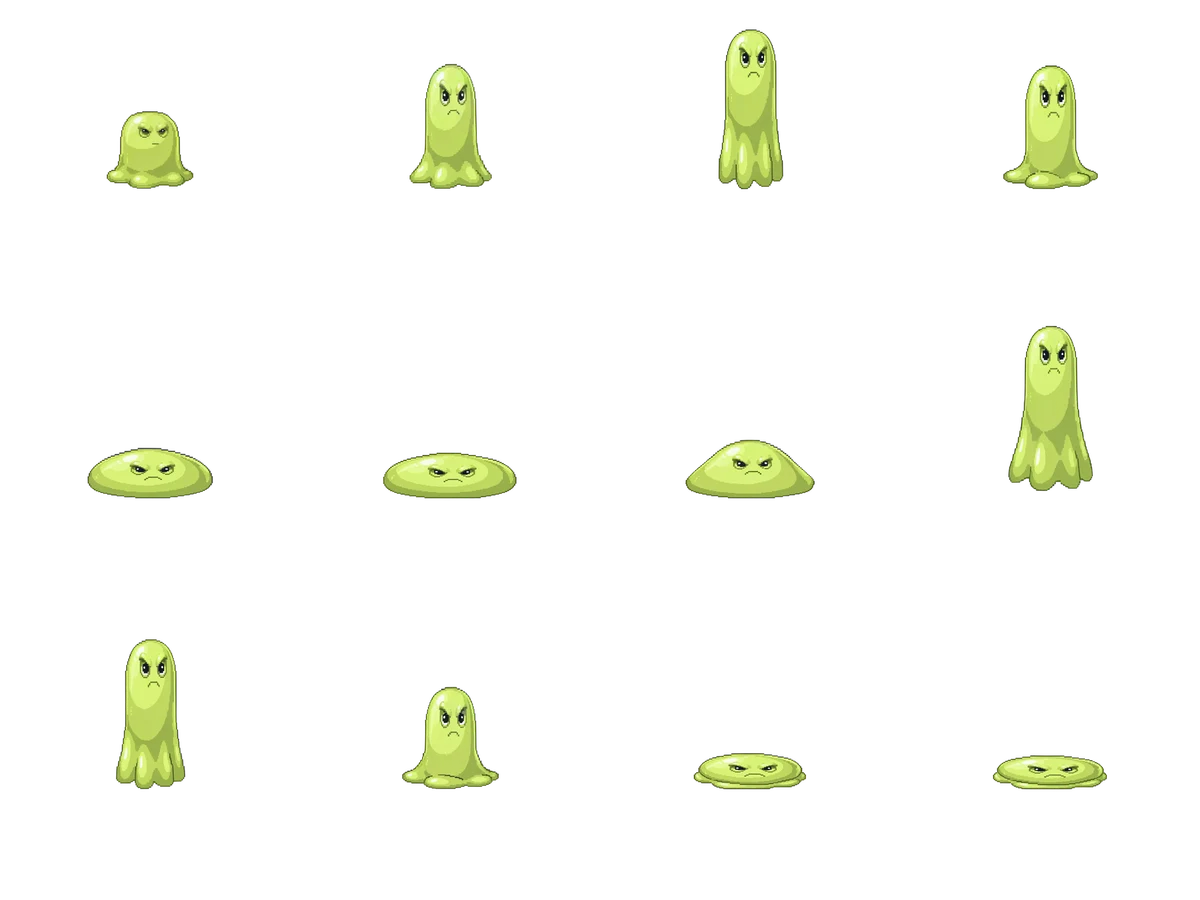
Slime bounce
A soft squash-and-stretch creature action.
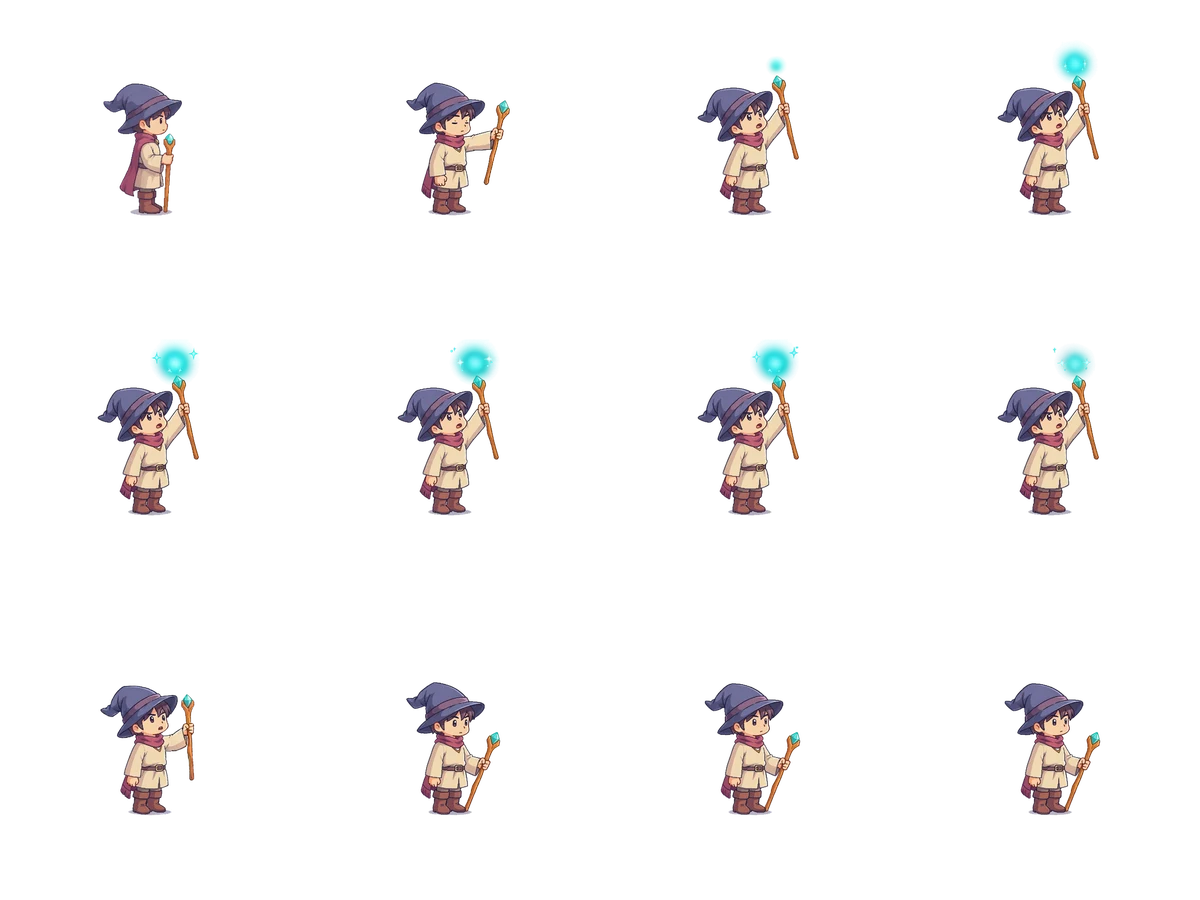
Mage casting
A short spell-casting action for a character.
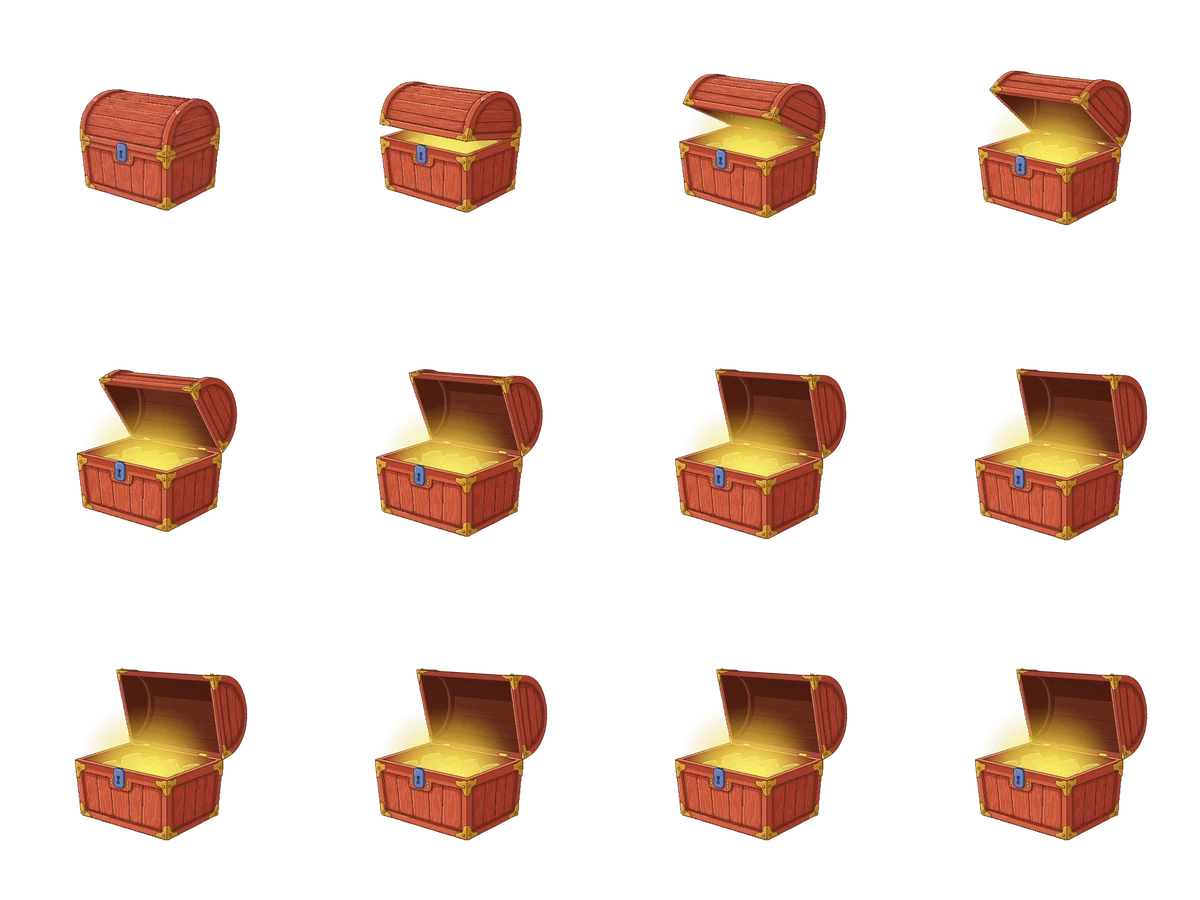
Treasure reveal
An opening chest for a reward moment.
Know the output
Generated frames. Prepared for your workflow.
The example is an actual DreamLayer animation export. It is not an RPG Maker-ready walking sheet. RPG Maker is a separate product; DreamLayer is not affiliated with its publisher.
- DreamLayer export
- Transparent PNG frames, sheet and atlas
- MV/MZ single character
- 3 columns × 4 direction rows
- Example cell size
- 48 × 48 px, if appropriate for your art
- Preparation
- Resize, arrange and review in an editor
From idea to usable artwork
How to prepare sprites for RPG Maker
Generate one action
Upload a clear reference and describe a fixed-camera walk, idle or other action. Review the animation and download the frames.
Select and arrange frames
A generated motion sheet is not automatically an MV/MZ walking sheet. Prepare each direction and choose the frames you need in an image editor.
Test the character in-engine
Arrange the MV/MZ character sheet, name the single-character file with a dollar prefix, and test alignment and walking playback in your project.
Before you create
Questions, answered.
Is the generated sheet ready to drop into RPG Maker?
Not automatically. DreamLayer exports animation frames and a regular sprite atlas. RPG Maker map characters require their own direction and pattern layout. Select, resize and arrange the needed frames in an image editor before import.
What layout does RPG Maker MV or MZ expect?
A single map character uses three patterns for each of four directions. Arrange those as a 3-column, 4-row sheet and prefix a single-character filename with $. A common 48-pixel cell produces a 144 × 192 image. Confirm the direction order and requirements in your engine version.
Does choosing 12 frames create a four-direction walk cycle?
No. Frame count is the length of the generated action. Twelve frames do not automatically mean three walking patterns in each of four directions. Prepare directional references and review the frames for each direction separately.
Can I use this for RPG Maker XP or battle sprites?
Those use different layouts. Check the standards for your version and asset type. The instructions here describe MV/MZ map-character preparation, not XP sheets or side-view battle actors.
Can I animate an existing RPG character drawing?
Yes. Upload a clear full-body reference with space around the character and describe one action. Keep the camera fixed for a game sprite. Review the resulting frames, then resize and arrange the ones you need for your RPG Maker asset.
Can I generate animated items or effects as well as characters?
Yes. You can start with an object or effect reference and describe a motion such as a spinning coin or opening chest. Review the generated action and adapt its frames to the asset format used by your project.
How do I keep a sprite walk cycle aligned?
Ask for a fixed camera and movement in place, with the entire character visible. Review the feet and character position across frames, then align and resize the selected frames in an image editor. Test the loop in your game before using it.
How much does generation cost?
Preparing a draft and downloading the public examples is free. Generating your own sprite animation requires paid App credits. The App shows the current frame-based quote before you submit; free starter credits do not cover sprite generation.