DreamLayer / Creator artwork
Fortnite Thumbnail Maker
Show players what your island offers.
Create Fortnite island thumbnail concepts from your scene or reference. Refine the artwork in DreamLayer and prepare an accurate image for publishing.
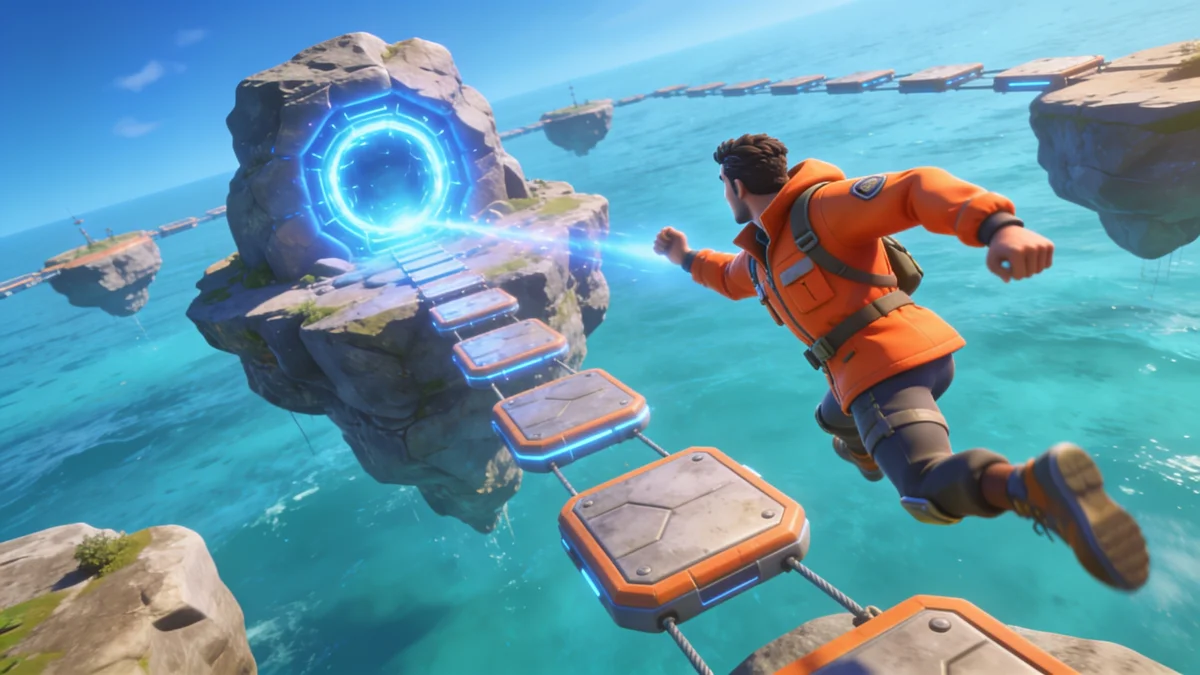
Start with your idea
Your scene, ready to develop.
Describe the scene or choose a starter. Add your own screenshot or character reference to guide the artwork.
Made with DreamLayer
Different stories. Different thumbnail styles.
Explore four original concepts with generated headlines, lighting and composition. Use your own scene and title to make the next one yours. Keep headlines short, and check spelling, crop and readability at mobile size before publishing.
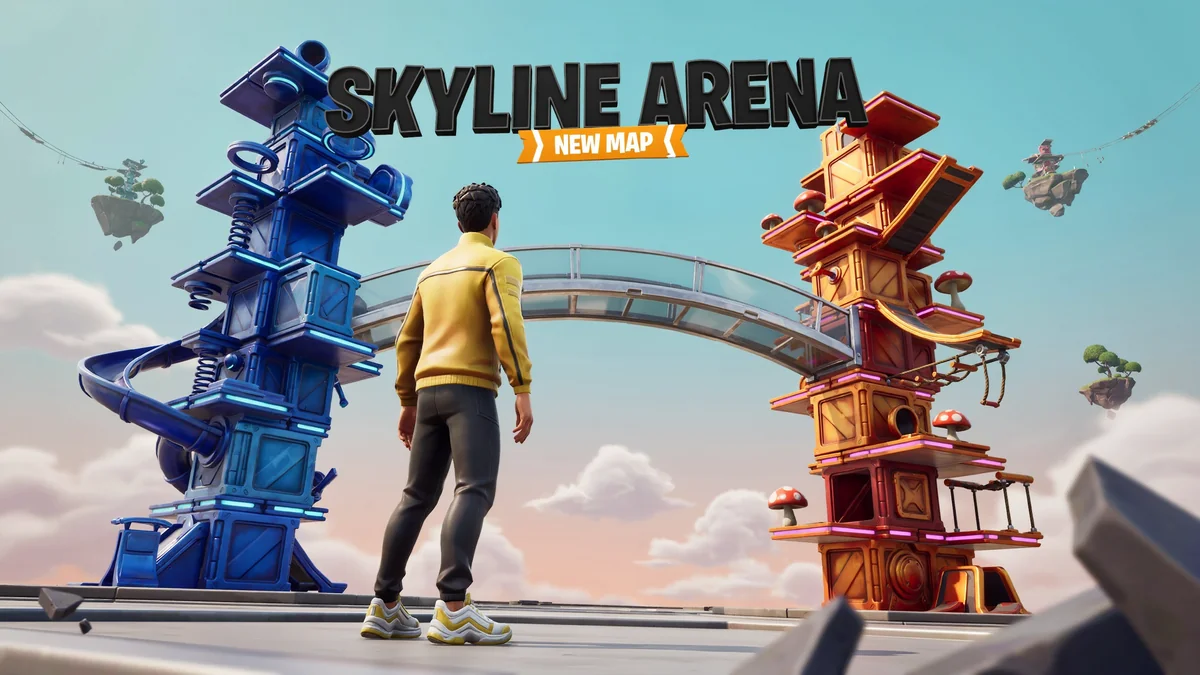
Arena concept
Strong symmetry makes the play space legible.
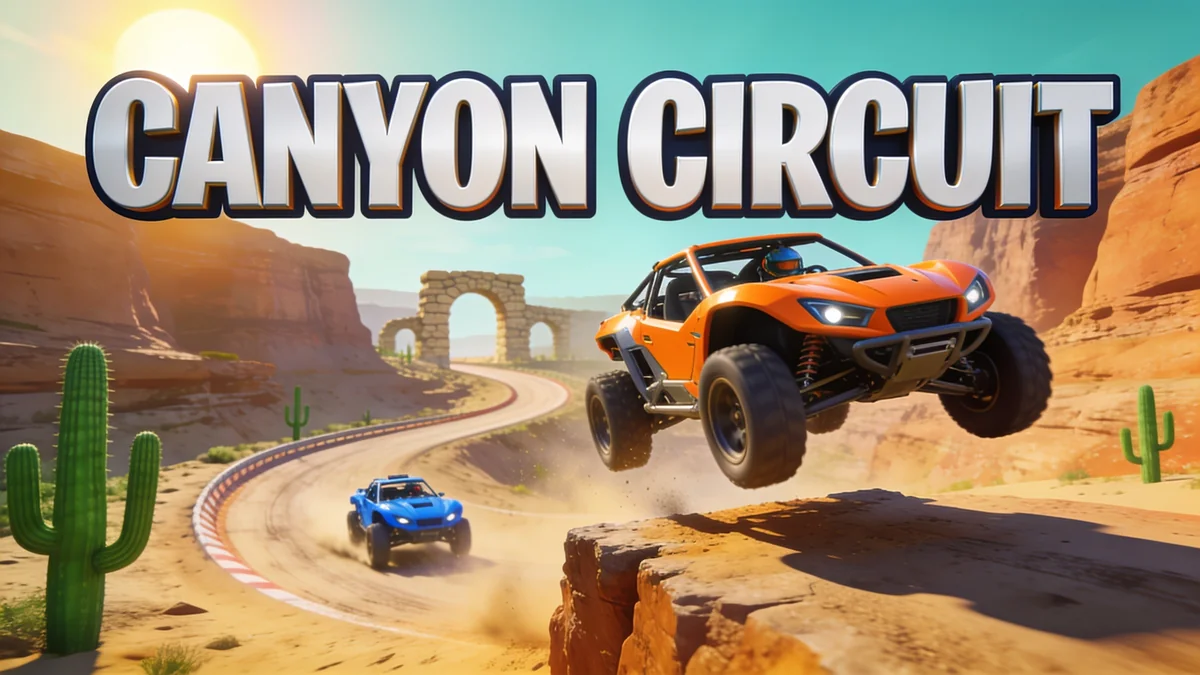
Island race
A sweeping track gives the scene direction.
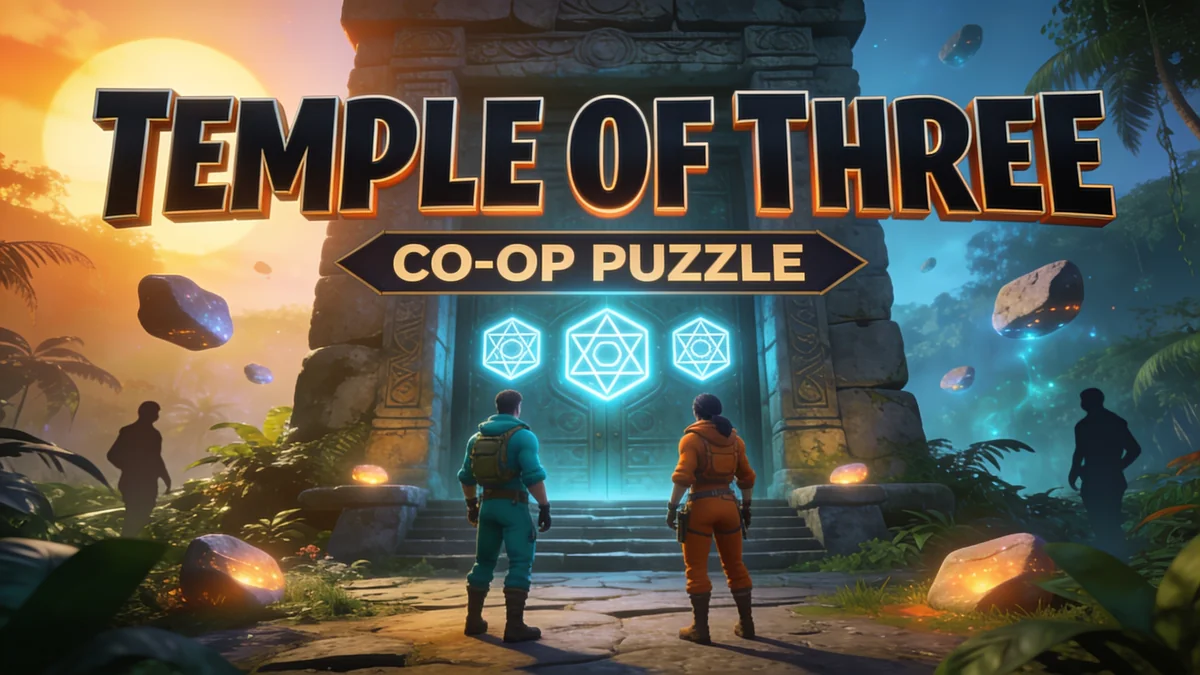
Puzzle adventure
Use a visual question to introduce the island.
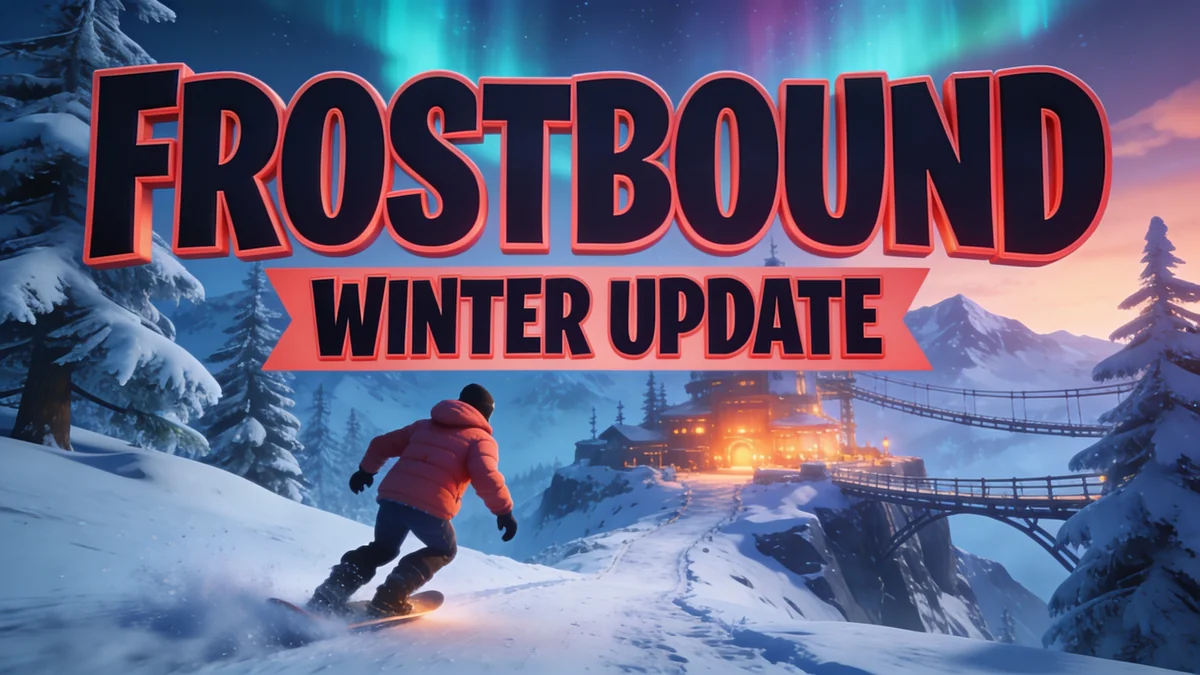
Seasonal update
A new environment changes the whole mood.
Know the output
Artwork first. Your final edit next.
Original concept art generated with DreamLayer for an imagined parkour scene. Published artwork must reflect your actual island. DreamLayer is not affiliated with Epic Games.
- Starting format
- 16:9 artwork
- Reference
- Your island scene or screenshot
- Output
- Editable thumbnail concept
- Publish
- Through your Creator Portal account
From idea to usable artwork
How to create Fortnite island artwork
Start with the island
Use a scene or screenshot of the experience players can actually visit. Choose one feature that makes the island distinctive.
Refine the composition
Describe the subject, viewpoint and lighting. Keep the result faithful to your playable content when generating or editing.
Prepare for publishing
Review the file, finish your export size, and check Epic’s current thumbnail requirements before uploading in Creator Portal.
Before you create
Questions, answered.
Does this create a Fortnite island or UEFN asset?
No. It creates 2D promotional artwork. DreamLayer does not export a playable island, a UEFN project or a rigged character from this page.
Can I use AI artwork as a Discover thumbnail?
Your final thumbnail must meet Epic’s current rules and accurately represent the island. A generated image is not automatically approved. Use your actual island as a reference and review the current requirements before publishing.
Does DreamLayer upload or approve the thumbnail?
No. You prepare the artwork here and in the App, then submit the final image through Creator Portal. Approval is handled by Epic.
Should I include XP, currency or reward badges?
Avoid adding reward promises or interface elements that misrepresent the experience. Follow Epic’s current thumbnail policies for your final artwork.
How do I make a Fortnite island thumbnail with AI?
Upload a screenshot of your island and describe the scene you want to highlight. Choose a clear focal point and continue into the DreamLayer App to generate and refine the artwork. Compare the result with your island before preparing the final upload.
Can I add a title to my Fortnite thumbnail?
Yes. Include the exact short title in quotation marks and describe its position, lettering and contrast. Leave the island scene readable and check generated spelling. Review the finished image against the publishing requirements for its destination.
Can I create multiple thumbnail concepts from one island screenshot?
Yes. Reuse the screenshot and ask for separate composition or lighting variations. Keep the same real landmarks and playable activity in each concept. Compare the results at small size before choosing your final artwork.
Is it free to use?
You can write a prompt and prepare your draft here without spending credits. Sign in to generate in the DreamLayer App. Generation and edits use App credits; check the current options on the pricing page. API credits are a separate balance.