Skip to content
ResourceSpace integration

Refine your ResourceSpace assets through conversation.

Start with a ResourceSpace asset and keep refining it through conversation. Use one workflow across leading image models, with a separate review for every result.

DreamLayer handles the model choice. Describe the outcome. Review and save what you want.

Your originals, metadata, and permissions stay in ResourceSpace.

ResourceSpace / AssetsWorkflow illustration
ResourceSpace libraryEnabled

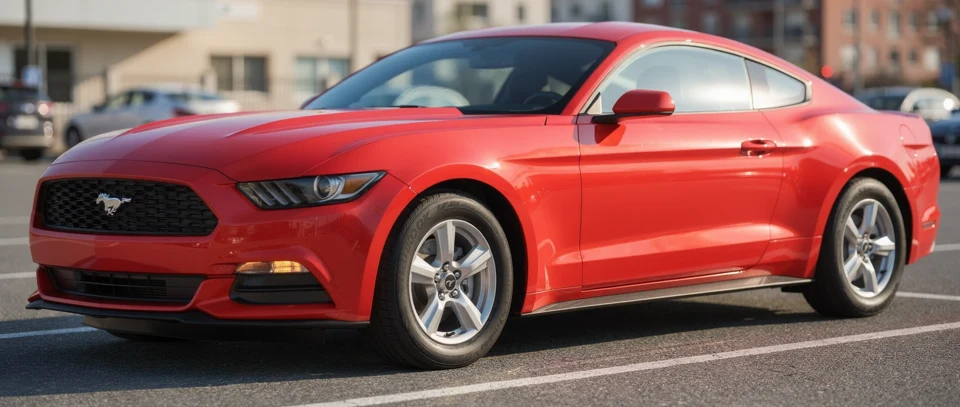
2015 Ford Mustang

Resource 392

Original red Mustang preserved in ResourceSpace✓ Selected for editing
Original imageimage
IMAGE VERSIONS
Blue
Parking
Cutout
Review before saving✓ Alternative saved · original kept
DreamLayerImage chat
  1. Choose an existing asset
  2. Refine through chat
  3. Review each result
  4. Save a new version
BUILT AROUND YOUR LIBRARY

ResourceSpace manages the asset.
DreamLayer helps you refine it.

Keep your library, metadata, collections, and permissions in ResourceSpace. Its existing search and AI editing tools remain part of your workflow.

What DreamLayer adds to ResourceSpace

  • One workflow across leading image models
  • Keep refining results through conversation
  • Apply one instruction across multiple assets
  • Review each result before saving anything back
REFINE THROUGH CONVERSATION

Keep refining
the same asset.

Start with a blue background, try a sunny parking lot, then remove the background. Each follow-up builds on a result. Return to an earlier version and take it in a different direction.

37 secondsOpen full video

One asset, four versions.

The original and actual results from the recorded conversation.

  1. 2015 Ford Mustang: original image
    00

    Original image

    The starting point in ResourceSpace.

  2. 2015 Ford Mustang: a blue background
    01

    A blue background

    Start with a simple change.

  3. 2015 Ford Mustang: a new setting
    02

    A new setting

    Continue in a sunny parking lot.

  4. 2015 Ford Mustang: background removed
    03

    Background removed

    Refine that result into a cutout.

ONE INSTRUCTION, SEPARATE RESULTS

One instruction.
Review every asset.

Select several images and describe the change once. Each asset gets its own result. Refine an individual preview, then choose which versions to save back to ResourceSpace.

39 secondsOpen full video
START WITH A REFERENCE

Use a similar asset
as your starting point.

Start with a reference and explore visually similar images in your library. Pick the closest asset, then open it in DreamLayer to describe the change.

7 secondsOpen full video
LEADING IMAGE MODELS, ONE WORKFLOW

DreamLayer handles
the model choice.

One workflow for background edits, cleanup, lifestyle scenes, and variations across leading image models. You don’t need to choose and maintain separate providers.

  1. 01

    Describe the outcome

    “Give these images a clean studio setting.”

  2. 02

    DreamLayer chooses the model

    Picks an image model for the task.

  3. 03

    Review and save

    Refine a result. Save only the versions you want.

YOUR ORIGINAL STAYS AVAILABLE

Keep the original.
Save the version you want.

Generating a preview leaves your ResourceSpace library unchanged. Each result has its own save controls.

Save as alternative

Attach the approved image to its source resource. Keep variations together with the original.

Save as new resource

Create a separate resource related to the source, with its metadata and access settings carried across.

Continue in ResourceSpace

Open a saved result in your library. Your existing permissions are checked when you save.

GOOD QUESTIONS

A few things
to know.

Doesn’t ResourceSpace already have AI image editing?

Yes. ResourceSpace’s OpenAI image editor supports generation, editing, further edits, and saving alternative files or new resources.

DreamLayer adds its own connected workflow: saved conversations, refinement from earlier results, image model selection, and edits across selected assets with individual review.

What does DreamLayer add to ResourceSpace’s AI tools?

Use one workflow across leading image models. Keep refining results through conversation, apply one instruction to several selected assets, and review each result before saving it.

Your originals stay in ResourceSpace, alongside the versions you choose to save.

Why use DreamLayer instead of using one image model directly?

Different image tasks call for different models. Describe the outcome and DreamLayer handles model selection across leading image models. Your team gets one workflow without choosing and maintaining separate providers.

Can I refine the same result through conversation?

Yes. Follow-up messages can build on previous results. Choose “Refine this image” to continue from an earlier version, or use Compare to review versions together. Your saved conversation keeps those results available.

Can I edit several assets in one request?

Yes. Select up to five images and describe the change once. Each image gets its own result, which you can review, refine, and save separately.

Does DreamLayer overwrite my original file?

No. Generating a result leaves your original unchanged. You choose whether to save an alternative file attached to the source or create a new related resource.

Where are results saved back in ResourceSpace?

Use “Save as alternative” to attach a result to the original resource, or “Save as new resource” to create a separate, related record. You can also download the generated image.

These options fit ResourceSpace’s existing alternative-file workflow.

Does this replace ResourceSpace search?

No. Keep using ResourceSpace’s existing search, including CLIP AI Smart Search, to find your starting asset. Open the selected image in DreamLayer when you want to refine it.

The videos also show DreamLayer’s optional visual search and similarity tools. They provide another way to choose an asset from your library.

Can DreamLayer work with ResourceSpace collections?

You can narrow DreamLayer’s visual search by collection, then select the images you want to edit. Up to five selected images can share an instruction, with a separate result for each.

Does DreamLayer replace ResourceSpace?

No. ResourceSpace continues to manage your assets, metadata, permissions, collections, and workflows. DreamLayer adds image search and conversational image editing alongside your library.

Is DreamLayer built into ResourceSpace?

DreamLayer is a separate integration developed by DreamLayer. Contact us with your ResourceSpace version and hosting setup so we can confirm compatibility and help you connect it.

What happens to our ResourceSpace permissions?

The integration checks the connected user’s access to source images and checks native permissions again when saving. Saved conversations are private to their owner.

Where are images processed?

Selected source images and your instructions are sent to DreamLayer and the external AI services used for the requested operation. This editing workflow uses cloud processing.

See our AI processing policy, model providers, and retention and deletion policy. Conversation history and generated results are also stored privately by the integration until removed by an operator.

What do I need to try it?

You need a ResourceSpace installation and a DreamLayer account. Send us your version, hosting setup, and the image workflow you want to improve. We will confirm compatibility and arrange a demo.


LET’S MAKE IT USEFUL

Bring a ResourceSpace asset.
Let’s refine it.

See DreamLayer with your own assets, from the first instruction to an approved version saved back in ResourceSpace.

Request a ResourceSpace demoTell us your ResourceSpace version and the image task you want to improve.

DreamLayer for ResourceSpace

Demo video · 1:35