
Start with a description.
Find visual content without first renaming files or manually tagging every image.


Search by meaning, then keep editing through chat. Review each result and save your chosen version to Pimcore.
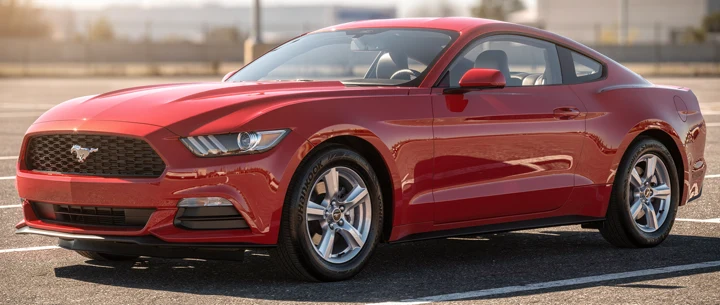
/ Assetsmustang-original.jpg
 ✓ Selected for editing
 Refine through conversation
Select an image from search, then tell DreamLayer what to change.
Search images by description or visual similarity.
Edit and refine images through chat.
Review every image. Choose what stays.
Describe the image you need, even when the filename and tags don’t contain those words. DreamLayer returns the closest visual matches from your Pimcore asset library.
Start with a selected image, choose Find similar, and explore related images in your library.
Find visual content without first renaming files or manually tagging every image.
Select a result and choose Find similar to explore visually related assets.
Use folder and configured category filters. Results and previews respect the user’s Pimcore permissions.
DreamLayer brings semantic image search to your existing Pimcore setup. The native Studio demos run without Backend Power Tools, Pimcore’s Enterprise search add-on.
Start with your existing workflow. We’ll confirm version compatibility, setup, and pricing with you for a pilot.
Pimcore’s add-on requirementsOpen an asset in Pimcore and select it in DreamLayer chat. Change the background, try a new setting, then refine the previous result with another message.
It picks the right image model for the task. Your team can focus on the result, with access to leading image models through one integration.
Select several product images and describe the change once. Review each preview separately, keep refining, and save only the results you choose.
The demo edits a Mustang and an Audi in one request, then saves the selected Audi result as a new asset and opens it in Pimcore.
Preview first. Save an approved result as a new Pimcore asset, with its source image preserved.
Bring visual discovery and conversational editing into the place your team already manages its assets.
Use visual meaning or a reference image to explore the library.
Refine previews with follow-up messages, including edits across several selected products.
Describe the outcome you want, with no separate model endpoint to configure for each editing task.
Native asset access checks and explicit save decisions stay part of the workflow.
Yes. Pimcore has introduced semantic search through its Backend Power Tools, which is an Enterprise bundle. DreamLayer gives teams another way to add semantic image search to their Pimcore workflow without depending on that Enterprise add-on.
With DreamLayer, you can search for images based on what is visually in them, not just filenames, folders, or manually entered metadata.
Yes. Pimcore Copilot includes AI image capabilities through configurable model endpoints.
DreamLayer is built around a different workflow. You describe what you want, keep refining the result through conversation, and DreamLayer handles model selection and routing across leading image models behind the scenes.
DreamLayer adds a visual workflow focused on:
Pimcore remains the system of record for your catalog and assets.
DreamLayer does not rely on Pimcore’s Enterprise semantic-search or Copilot add-ons for its AI image workflows.
This gives teams another way to add semantic image search and AI image generation and editing to their Pimcore setup.
Different image models are better at different tasks.
DreamLayer gives your Pimcore workflow one integration while handling model selection and routing behind the scenes. Your team does not need to choose, integrate, and maintain separate providers for each image task.
Yes. You can start from an existing Pimcore image, request a change, and continue refining the result through follow-up messages.
Previous results stay available, so you can compare versions and choose which one you want to save.
Yes. You can select multiple product images, describe the change once, and review the result for each product separately.
You choose which results get saved. The originals remain available.
No. DreamLayer lets you preview and review generated results before choosing what gets saved back to Pimcore.
Your existing assets remain under your control.
No. Semantic image search uses the visual content of the image itself.
For example, a search for “red sports car outdoors” can find matching images even if those words never appear in the filename or metadata.
Yes. That is one of the main workflows DreamLayer is designed around.
Find the asset you need using semantic search, open it in DreamLayer, refine it through conversation, and save the approved result back to Pimcore.
No.
Pimcore continues to manage your products, assets, metadata, permissions, and catalog workflows. DreamLayer adds a visual AI layer for finding, generating, editing, and refining images.
The demos run in native Pimcore Studio 2026.3.2. Backend Power Tools is not installed. This is an independent DreamLayer integration available to evaluate through a pilot. Share your Pimcore version and edition so we can confirm the setup for your installation.
Yes. Search and editing are separately enabled features in the integration. Start with the workflow your team needs and evaluate the other as part of your pilot.
Image processing uses DreamLayer credits. Contact us to confirm search setup, usage pricing, and the scope of a Pimcore pilot for your library.
Bring your Pimcore setup and an image task.
See how DreamLayer fits your team’s workflow.