


Skip to content
Akeneo integration

Edit your Akeneo
product images
through chat.

Select an image from your catalog and tell DreamLayer what to change. Refine details with follow-up messages, edit multiple products in one request, and review each result before applying it in Akeneo.

Akeneo / ProductsWorkflow illustration
Akeneo CatalogEnabled

2015 Ford Mustang

ABLO-4CDC5F30AE59

Original red Mustang in the illustrated catalog✓ Selected for editing
Vehicle imageimage
IMAGE VERSIONS
Blue version of the Mustang
Blue
Parking
Cutout
Review before applying✓ Image saved to product
DreamLayerImage chat
@2015 Ford MustangGive it a plain blue background.

Here it is on a plain blue background.

Mustang on a blue studio background
Blue background
Apply to product
Built for AkeneoChat-based editingImage generation with leading AI modelsBackground removal
REFINE THROUGH CONVERSATION

Image editing,
as simple as a chat.

Describe the change and refine it with a follow-up. Swap backgrounds, try a new setting, or create a cutout, all without leaving Akeneo.

37 seconds · Edited demoOpen full video

One car, four versions.

The original image and the actual results from this conversation.
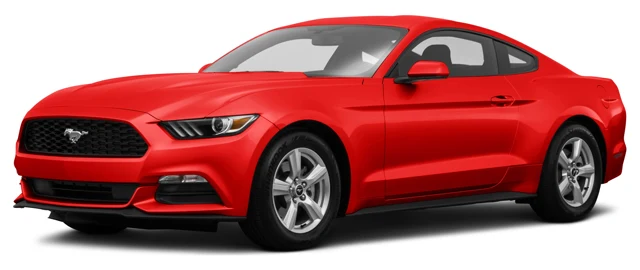
  1. Original red Ford Mustang product image
    00

    Original image

    The starting point in the catalog.
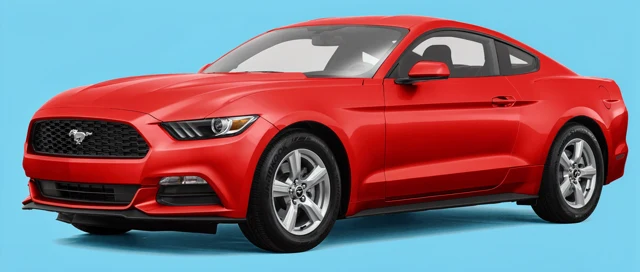
  2. Red Ford Mustang against a plain blue studio background
    01

    A plain blue background

    Start with a simple change.
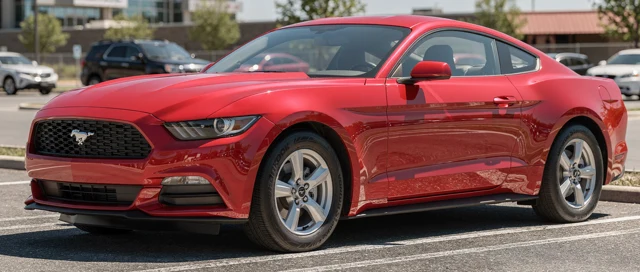
  3. The same red Ford Mustang in a sunny outdoor parking lot
    02

    A new setting

    Continue with a sunny parking lot.
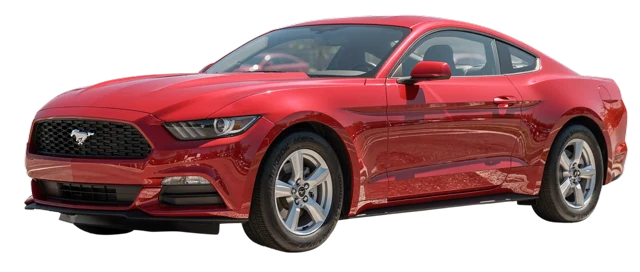
  4. Red Ford Mustang with its background removed
    03

    Background removed

    Refine that result into a cutout.

THE PLATFORM + THE POSSIBILITIES

Your tools.
Working together.

Akeneo brings your product information together. DreamLayer brings image editing into that same workspace, so your team can work on the visual alongside the product it belongs to.

Explore Akeneo
FROM SELECTED IMAGE TO SAVED RESULT

Less exporting.
More useful iteration.

01

Select in the product editor

Start from a product's image field. Keep the relevant attribute, locale, and scope attached to the editing request.

02

Keep the conversation going

Ask for a cleaner background, review a preview, then refine that result in the same conversation.

03

Save to the intended field

Review the exact destination before applying. The integration is designed to reject a stale result if the saved image has changed.

A CLOSER LOOK

From an image
to a conversation.

Explore the steps below. Your product stays in context as you review each version.

DreamLayer · AkeneoExample workflow
Daily Form bottleProduct image · DL-01

Let's work on this product image.

Your source image is selected. Describe the change you want.

Describe your next edit…
Selected imageDL-01
Original product photo of the blue Daily Form bottle
Start with a product image
Product imagery generated and edited with DreamLayer. This walkthrough makes no live request or catalog save.
BUILT AROUND THE WORK

Small tasks.
Useful possibilities.

Start with a concrete image task.
Make the workflow fit your team.

Prepare listing images

Explore cleaner backgrounds while keeping the existing product image as the starting point.

Try a campaign direction

Describe a different scene or treatment, then compare the output with its source.

Edit several products at once

Select multiple catalog images, describe the change once, and review a separate result for each product.

THE INTEGRATION APPROACH

Designed around the product record.

The value is in the whole workflow: selecting the correct image, making a follow-up edit, reviewing the result, and saving to the right attribute. The integration keeps those decisions visible.

Product and image context
Persistent conversations
Explicit review and save

An independent DreamLayer integration, demonstrated on self-hosted Akeneo Community Edition. Contact us to confirm support for your edition and version.

GOOD QUESTIONS

A few things
to know.

Is this an official Akeneo partnership?

No. This is an independently developed DreamLayer integration. Akeneo is identified here as the platform it is designed to work with.

Can I install it on any Akeneo edition?

Not yet. The initial demo targets a specific self-hosted Community Edition setup. We will confirm your edition, version, image fields, and deployment before discussing a pilot.

Can I refine a result in the same chat?

Yes. A follow-up can use the previous result as its starting point, so you can try a new setting or remove the background without starting again.

Can I edit several products in one request?

Yes. Select multiple product images and describe the change once. Each image gets a separate preview and keeps its own product destination.

Will it automatically overwrite my images?

No. Applying a result is a separate, explicit action. Destination and permission checks are part of the integration work.

Can my team help shape it?

Yes. We are looking for teams and agencies willing to share a representative image workflow and evaluate a focused demo.

LET'S MAKE IT USEFUL

Bring a product.
Bring an image task.

We will show the editing flow and discuss the fit for your Akeneo setup.

Request an Akeneo demo Tell us your platform version and the image workflow you want to improve.